ALPHA · TESTING RELEASE

Connect Your AI Agent to Lark

Send instructions through Lark and let Codex or Claude Code work on your computer through Lark Agent Bridge.

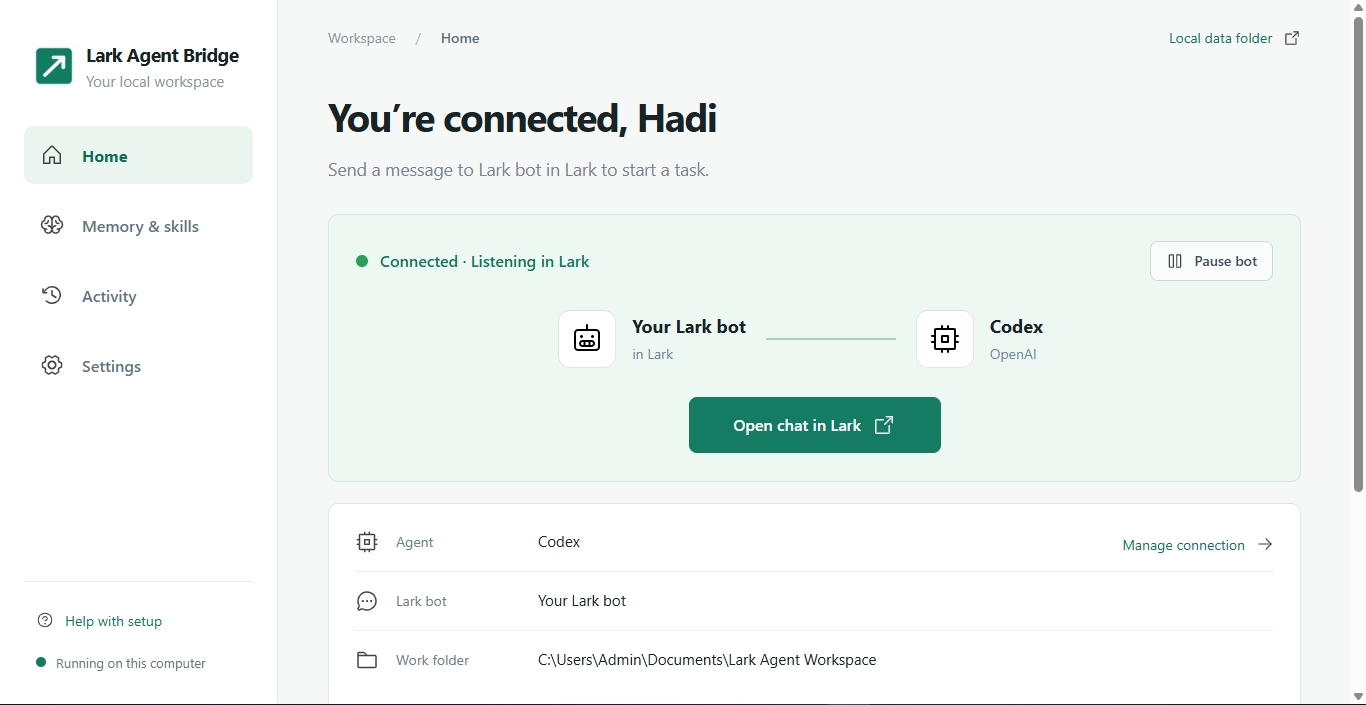
Lark Agent Bridge desktop dashboard connected to Codex and listening for messages in Lark.

Available for Windows x64, Mac with Apple Silicon (ARM64) and Linux x64. This is an early alpha build for testing. Windows testing builds are unsigned, and Mac builds are not Apple notarized.

Works with Codex or Claude Code
Runs on your own computer
Results come back in Lark

Overview

What Is Lark Agent Bridge?

Lark Agent Bridge is a desktop application that connects your Lark bot to an AI agent running on your own computer. It works with Codex or Claude Code, the command line agents you already use.

You stay in Lark

Send an instruction as a normal chat message and the bridge passes it to the agent on your computer. The result comes back to you in the same conversation.
The agent runs locally

The AI agent works inside the folder and access level you configured for it on your own machine, using the account you already signed in with.

One bridge between both

Lark Agent Bridge handles the connection in both directions, so you can send work from Lark and receive files, updates and answers back.

How It Works

Four steps from chat to finished work

Four simple steps connect your Lark chat to work done on your computer.

1

You send an instruction in Lark

Send a message, a file or a folder to your Lark bot, just like chatting with a colleague.

2

Lark Agent Bridge forwards the request

The desktop app passes your request to the AI agent on your computer, using the Lark connection you authorized.

3

Codex or Claude Code runs the task

Your chosen agent works on the task inside the work folder and access level you set during setup.

4

The response comes back in Lark

Results, files and updates are delivered to you through Lark, in the same conversation.

From a Lark Message to Agent Action

Send a request in Lark and receive a response from your connected agent. This example shows the agent finding a folder in the connected Lark workspace.
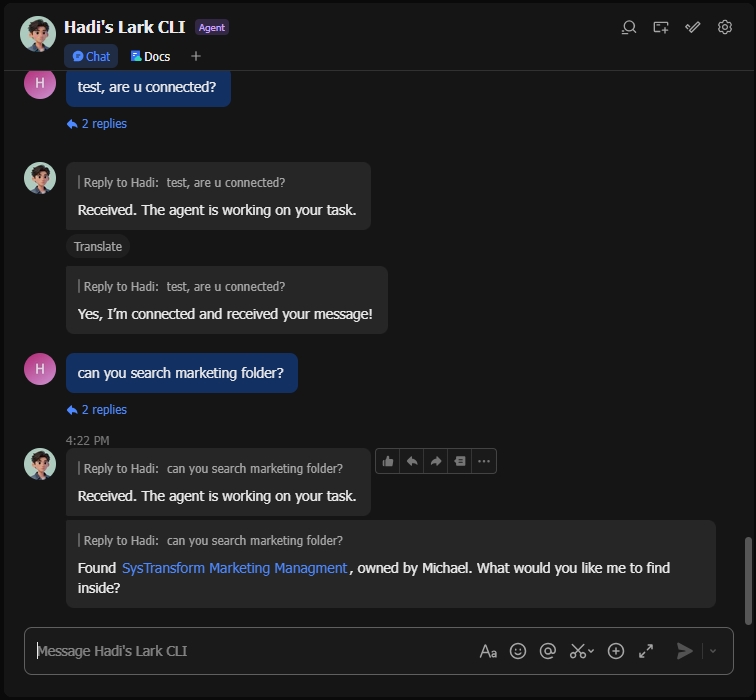
Lark conversation showing a connected agent responding to a request to find a marketing folder.
Example conversation using a configured Lark account.

The computer that runs the bridge must stay awake, connected and online while you use it. If the computer sleeps or goes offline, the bridge cannot receive or run tasks. Closing the app window keeps the bridge running in the system tray where a tray is available. Choose Quit to exit.

Key Capabilities

What you can set up and control

What you can set up and control in this testing release.

Choose Your AI Agent

Work with Codex or Claude Code. Pick the agent you already use during setup and change it later in Settings.

Send Files and Folders

Upload PDFs, images, Markdown and text files, ZIP archives or a whole folder in Lark, then send your instruction.

Connect Lark Features

Choose which Lark features to authorize, such as Docs and Drive, Sheets, Slides, Wiki, Base, Tasks and Calendar.

Configure Computer Access

Set the work folder the agent uses and choose how much of your computer it may access.

Stay in Control

Pause the bot to disconnect at any time, or cancel a task that is already running.

Lark Workspace

Connect Your Lark Workspace

During setup you can choose which Lark features to authorize. The available options include:

  • Documents & Drive
  • Sheets
  • Slides
  • Wiki
  • Base
  • Tasks
  • Calendar
  • Meetings & Minutes
  • Contacts
  • Email

More features are grouped under More features during setup, including OKR, Approvals and Attendance. Optional features start unchecked on a new profile, while chat and account authorization is still required.

How each feature behaves depends on your own authorization, the bot's permissions, your organization's approval and your access to the specific resource. Selections control the next authorization request, they are not a runtime tool allowlist, and unchecking a feature does not revoke permissions you already granted. Remove existing grants through Lark's authorization management if you need to.

Get Started

Set up in four steps

Setup takes four steps. You need your own AI agent account and your own Lark account.

1. Choose your AI agent

Install Codex CLI or Claude Code and sign in with your own account.

2. Connect your Lark bot

Create or connect your bot and complete the required authorization.

3. Set your workspace and access

Choose the work folder and the level of computer access for the agent.

4. Send your first message

Send a test message in Lark and watch the bridge respond.

Download

Get the Latest Testing Release

Installers are published on the official download page. Open it and choose the installer for your operating system and processor. The same page always points to the newest testing build, so you never need to remember a version number.

Mac with Apple Silicon (ARM64)

Testing DMG or ZIP. Not Apple notarized, so macOS asks for your approval to open it.

Download for Mac

Downloads are public and do not need a GitHub account. Intel Mac builds are not included in this release. The automatically generated Source code archive on GitHub is not an installer, so always download an installer asset instead. This testing version has no automatic update service: to update, download a newer installer and install it over the current app. Your existing local settings and memories are kept.

These builds are for testing and are not production ready. Lark Agent Bridge is proprietary software. Any AI agent and Lark service charges, if any, belong to your own accounts.

FAQ & Support

Frequently Asked Questions

Do I need Codex CLI or Claude Code installed?
Yes. You need Codex CLI or Claude Code installed and signed in with your own account. Lark Agent Bridge connects to the agent you already use and does not include an AI account of its own.
Does my computer need to stay on?
Yes. Keep the computer that runs the bridge awake, connected and online while you use it. Closing the app window keeps the bridge running in the system tray where a tray is available. Choose Quit to exit the app.
Do I need approval from my Lark administrator?
It depends on your organization. Your Lark organization may require administrator approval to create a bot or to grant permissions. Bot permissions, organization approval and access to individual resources are handled separately.
Are AI and Lark service charges included?
No. Lark Agent Bridge does not include AI or Lark credits. Any charges from your AI agent provider or from Lark services belong to your own accounts and follow your existing subscriptions.
How do I update Lark Agent Bridge?
Updates are manual. Download a newer installer from the official download page and install it over the current version. Your existing local settings and memories are kept. This testing version has no automatic update service.
Where can I report a problem?
Open an issue in the release repository. Include the app version, your operating system and the error message. Remove app secrets, sign-in codes, access tokens and private conversation or document contents before posting.

Need more help?

For setup problems and bug reports, open an issue in the release repository. A clear report with your app version, operating system and the exact error message helps us reproduce the problem faster.

Before you post, remove app secrets, sign-in codes, access tokens and any private conversation or document contents.

Footer Newsletter Signup